
How to Update APN Settings on iOS or Android
OVOSIM Support Team · Updated May 2026
Only update APN settings if instructed to do so
Updating the APN is not required for most users. Only make changes if the APN was specifically provided in your OVOSIM activation email or by our support team. If you are unsure, contact us before making any changes.
Update APN on iPhone / iPad
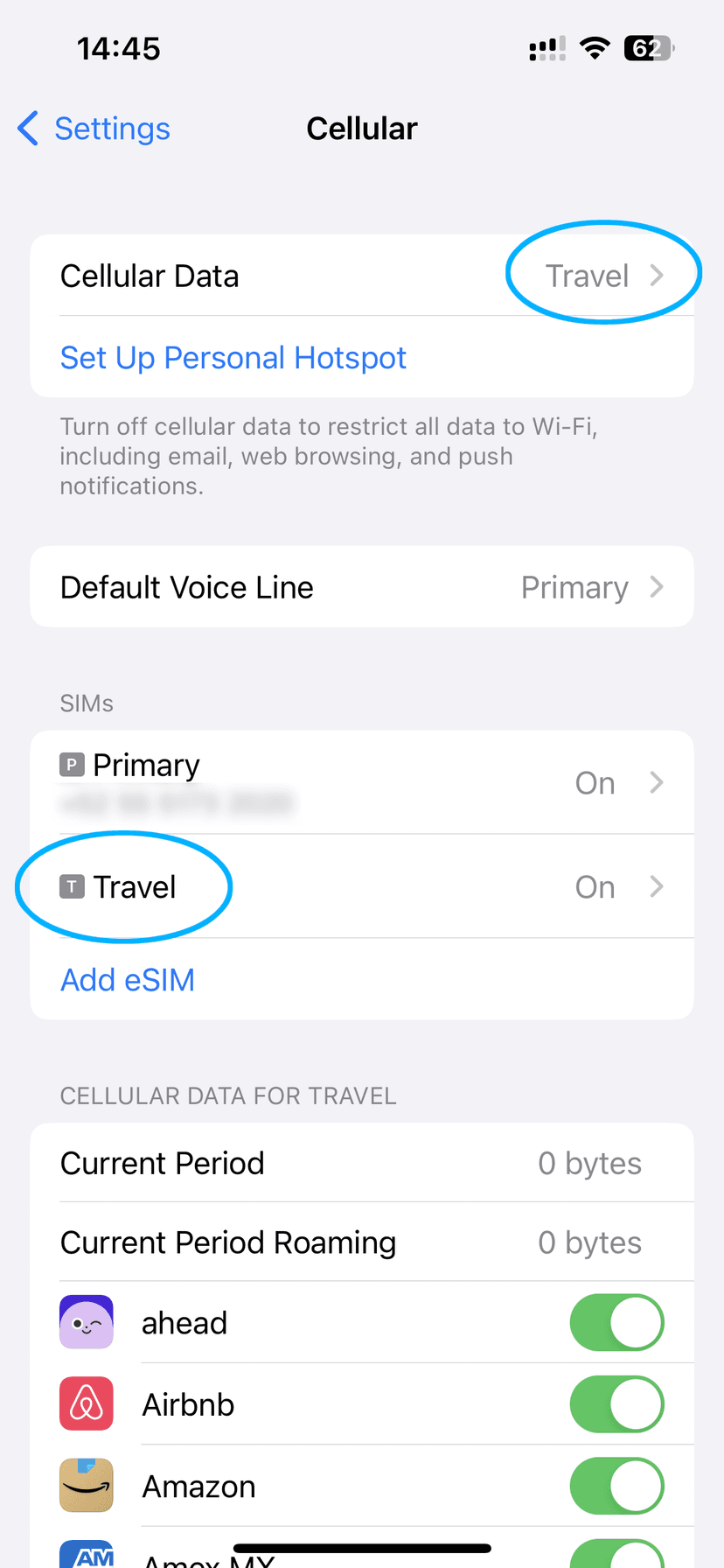
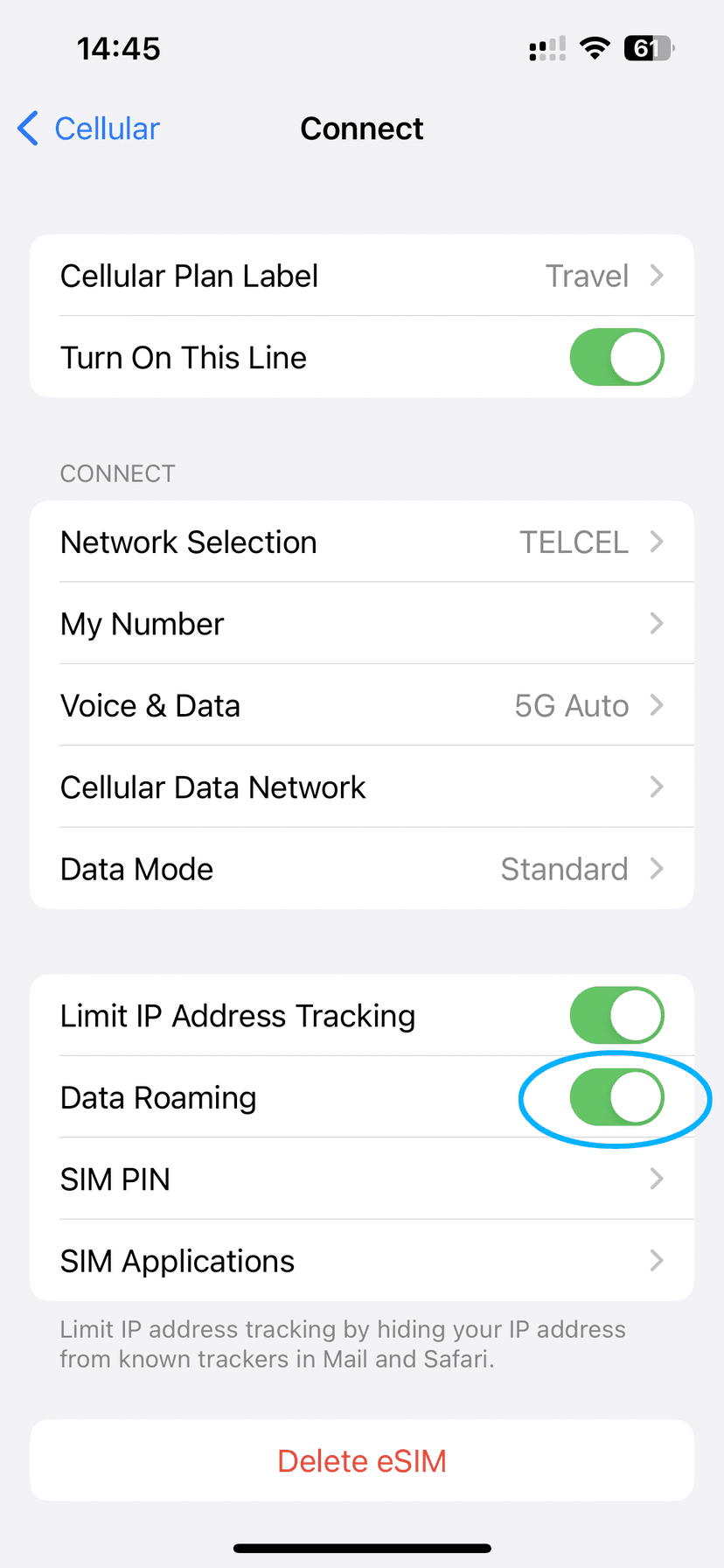
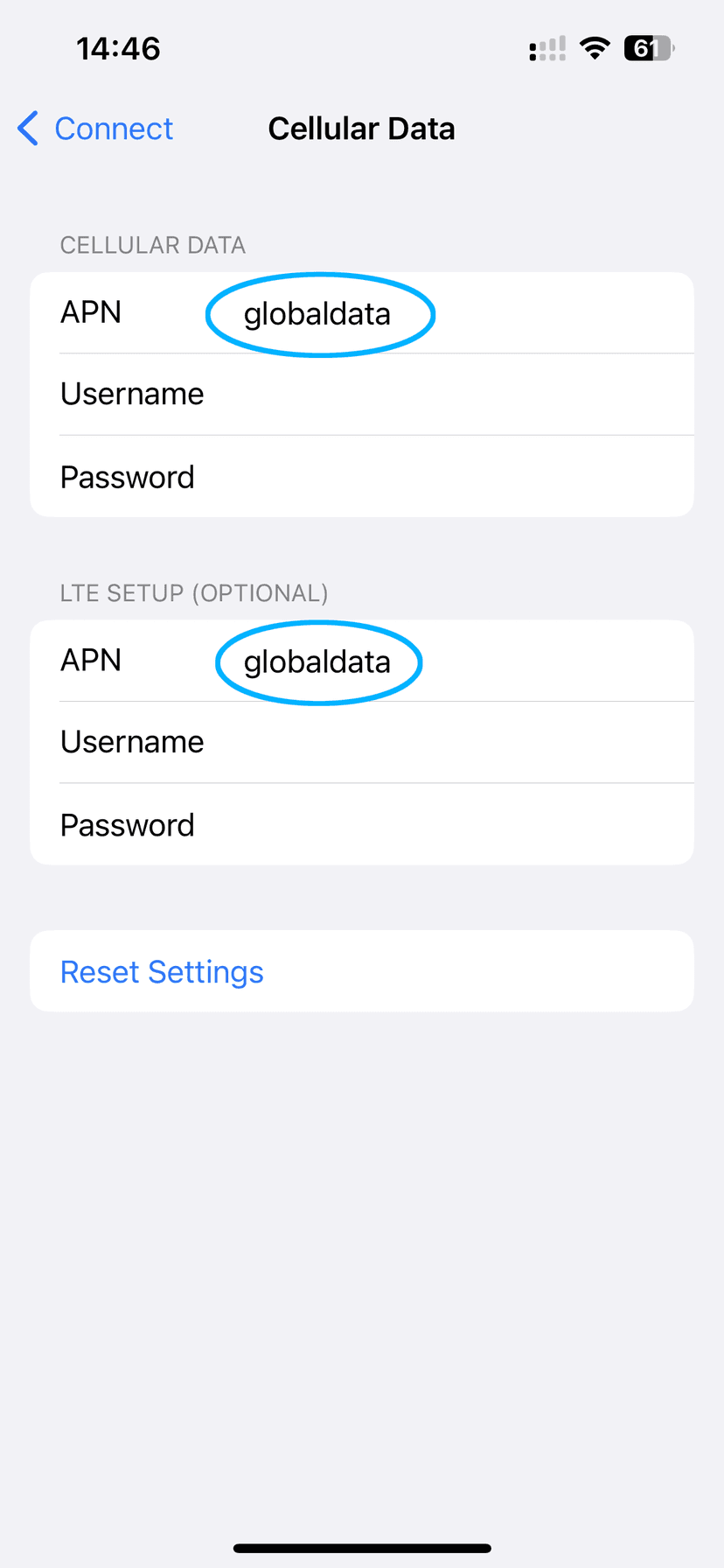
- Open Settings → Cellular (may be called Mobile or Mobile Service)
- Tap your OVOSIM eSIM plan — it may be labelled "Travel", "Secondary", or "Mobile Data"
- Tap Cellular Data Network
- In the APN field, enter the APN name provided in your activation email or by OVOSIM support
- If there is anything in the Username or Password fields, delete it — only the APN name is required
- Tap Connect at the top left to save
- Enable Airplane Mode, wait 30 seconds, then turn it off — this forces a network reconnection
- Wait up to 15 minutes for the eSIM to authenticate and begin receiving 4G/5G data
Update APN on Android
Samsung Galaxy
- Go to Settings → Connections → Mobile Networks
- Tap the OVOSIM eSIM plan
- Tap Access Point Names
- Tap Menu → New APN
- In the APN field, enter
globaldata - Delete anything in the Username and Password fields — only the APN name is required
- Return to the previous screen and select the new APN
- Restart your device to reset the mobile network
Google Pixel and other Android devices
- Go to Settings → Network & Internet → Mobile & Network
- Tap the OVOSIM eSIM plan
- Tap Access Point Names
- Tap Menu → New APN
- In the APN field, enter
globaldata - Delete anything in the Username and Password fields
- Return to the previous screen and select the new APN
- Restart your device to reset the mobile network
Not sure which APN to use?
Contact our support team and we will provide the correct APN for your plan and destination.
Contact Support