
eSIM Connection Troubleshooting Guide
OVOSIM Support Team · Updated May 2026
There are several reasons why your eSIM may appear connected to the network but not have an internet connection on 4G LTE or 5G. You may experience:
- Extremely slow download or upload speeds
- Only "E" (Edge) appearing in the signal status — no 4G LTE or 5G
- No internet connection even though the eSIM shows a signal
Do not delete your eSIM. If it is not working, follow the steps below first. Deleting the eSIM may require purchasing a new plan. Contact us if you need help.
Step 1 — Are you in the eSIM coverage area?
Your OVOSIM eSIM will only work in the destination country it was purchased for. For example, a France eSIM will only connect to a network inside France. You can install the eSIM at any time, but it will not connect until you are in the destination country.
Traveling to Russia? Russia applies a mandatory 24-hour data block to all international eSIMs on first connection. This is a government regulation — not a fault with your eSIM. Your data will work from the following morning. See our Russia data block guide.
Step 2 — Turn on Data Roaming
Data Roaming must be enabled for the eSIM to connect to a network.
iPhone / iPad
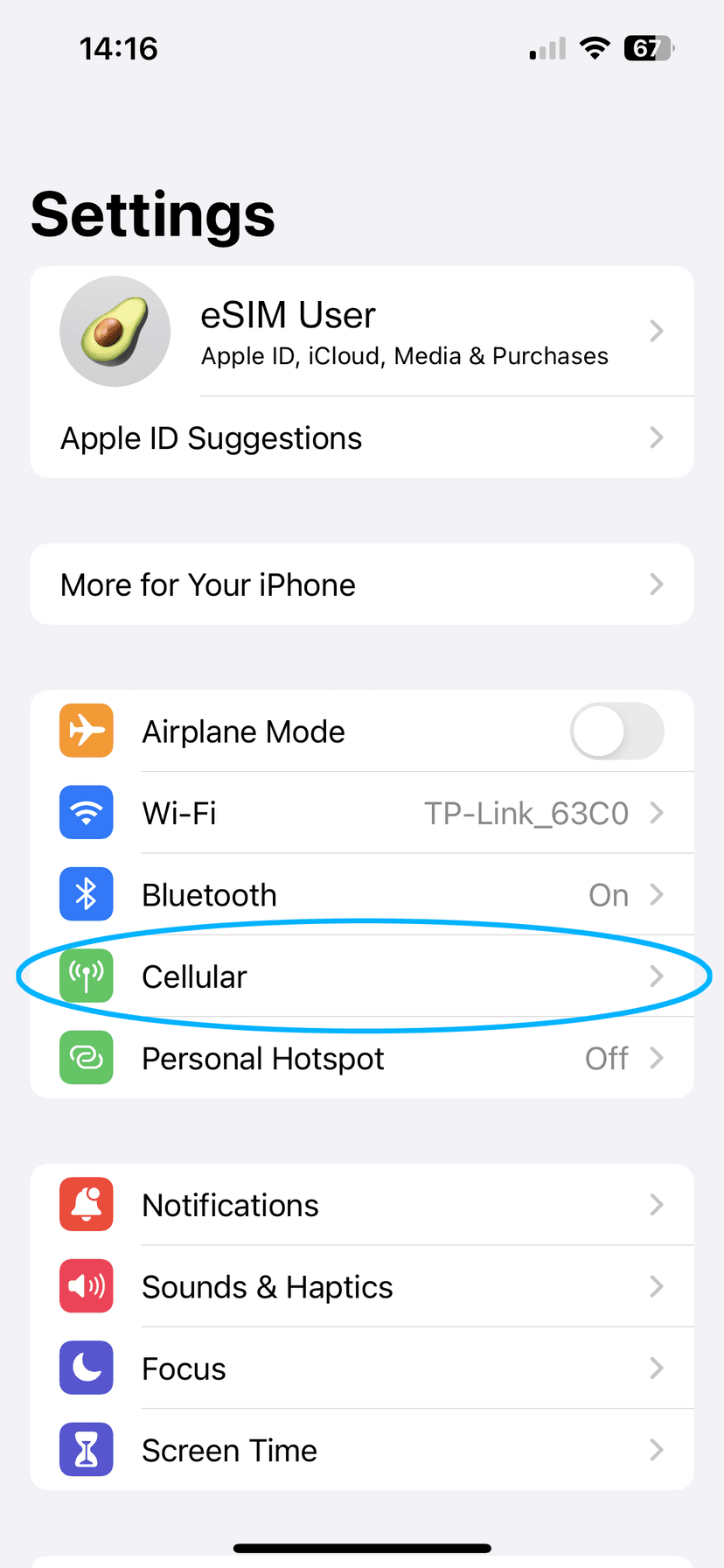
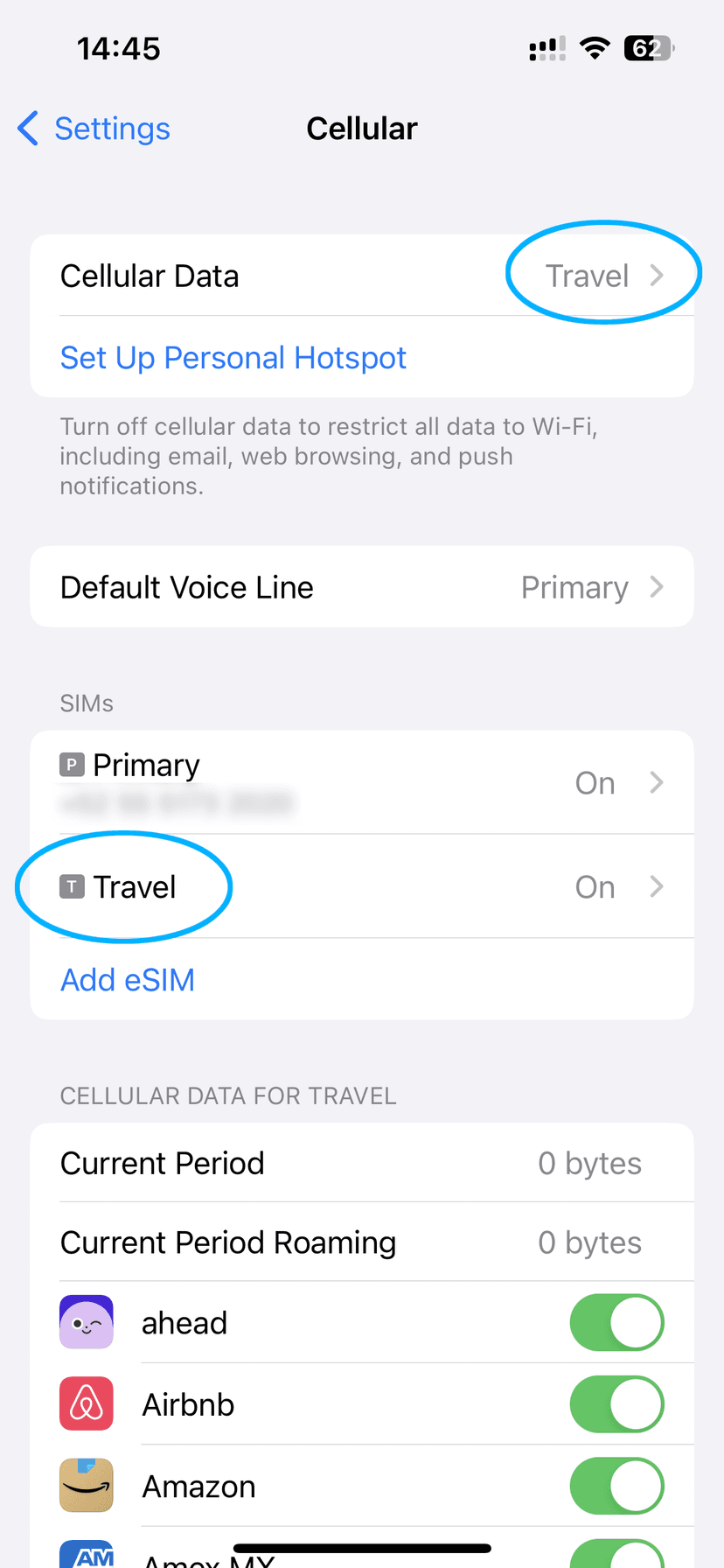
- Go to Settings → Cellular and select your OVOSIM eSIM plan under SIMs
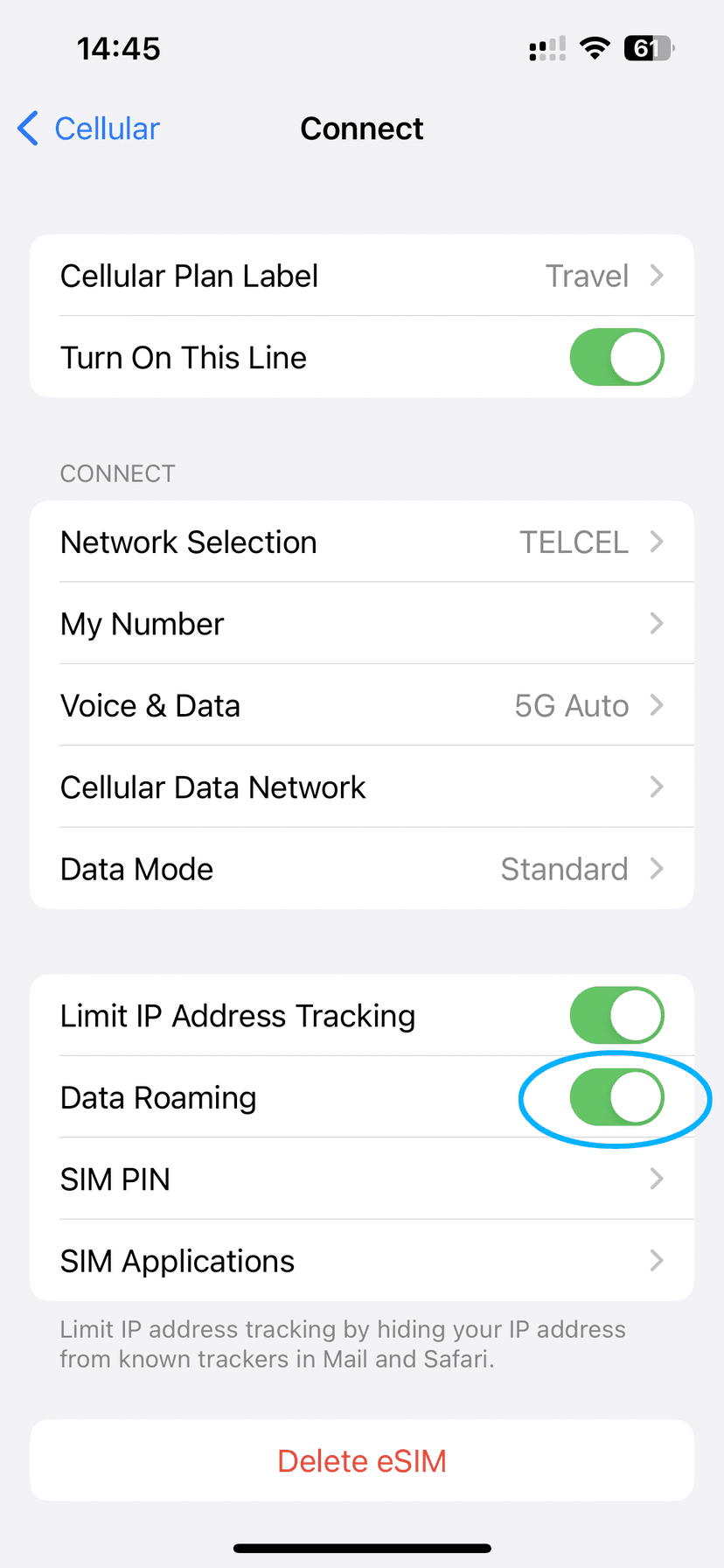
- Make sure Turn On This Line is set to ON
- Make sure Data Roaming is set to ON
Samsung Galaxy (Android)
- Open Settings → Connections
- Tap Mobile Networks
- Confirm Data Roaming is ON
Google Pixel (Android)
- Open Settings → Network & Internet
- Tap SIMs and select your OVOSIM eSIM plan
- Enable Data Roaming and Mobile Data
Step 3 — Set your phone to use the eSIM for mobile data
iPhone
- Go to Settings → Cellular
- Tap Cellular Data at the top
- Make sure your OVOSIM eSIM plan is selected — it may be labelled "Travel", "Secondary", or whatever you named it during setup
Samsung Galaxy (Android)
- Open Settings → Connections
- Tap SIM Card Manager
- Select the OVOSIM eSIM plan for Mobile Data
Google Pixel (Android)
- Open Settings → Network & Internet
- Tap SIMs and select your OVOSIM eSIM plan
Step 4 — Android only: Configure APN Settings
If you are using an Android device and there is no data connection, check the APN settings:
- Go to Settings → Mobile & Network (Samsung: Settings → Connections → Mobile Networks)
- Tap the OVOSIM eSIM plan, then tap Access Point Names
- Tap Menu → New APN
- In the APN field, enter:
globaldata - If there is anything in the username or password fields, delete it — only the APN name is required
- Return to the previous screen and select the new APN
Step 5 — Reset the data connection
Enable Airplane Mode in Settings and wait 30 seconds, then turn it off again. This forces your device to reconnect to the cellular network. Wait up to 15 minutes for the eSIM to authenticate and establish a 4G LTE or 5G connection.
Step 6 — Manually select a network
If resetting the connection does not work, try selecting a network manually.
iPhone
- Go to Settings → Cellular and select your OVOSIM eSIM plan
- Tap Network Selection
- Switch Automatic to Off and wait for the list of available networks to appear
- Manually select an available network and wait for the signal status to update — you should see "Searching" appear in the top bar
- Once connected, toggle Automatic back to On
Contact us if you need to manually select a network and we can advise which networks work best in your destination.
Still no connection?
If none of the above steps resolve the issue, it is possible you are in an area without service coverage, or there is a temporary network issue outside our control. Leave Network Selection set to Automatic and your device will continue searching for a signal.
If the issue persists, contact our support team and we will get back to you right away.