
iMessage Not Working: Sending & Receiving SMS on iPhone
OVOSIM Support Team · Updated May 2026
After installing an OVOSIM eSIM, you may find that iMessage is not working correctly. Please review the eSIM Quick Start Guide and the eSIM Connection Troubleshooting Guide to make sure your settings are correct first.
Still having trouble? The steps below will restore iMessage to the correct settings.
Primary and Secondary Lines
When you install an OVOSIM eSIM, your iPhone adds a new secondary line for mobile data. The secondary eSIM line should be used for data only. Your Primary line (your home SIM with your phone number) should remain the Default Voice Line.
Step 1 — Set the Default Voice Line
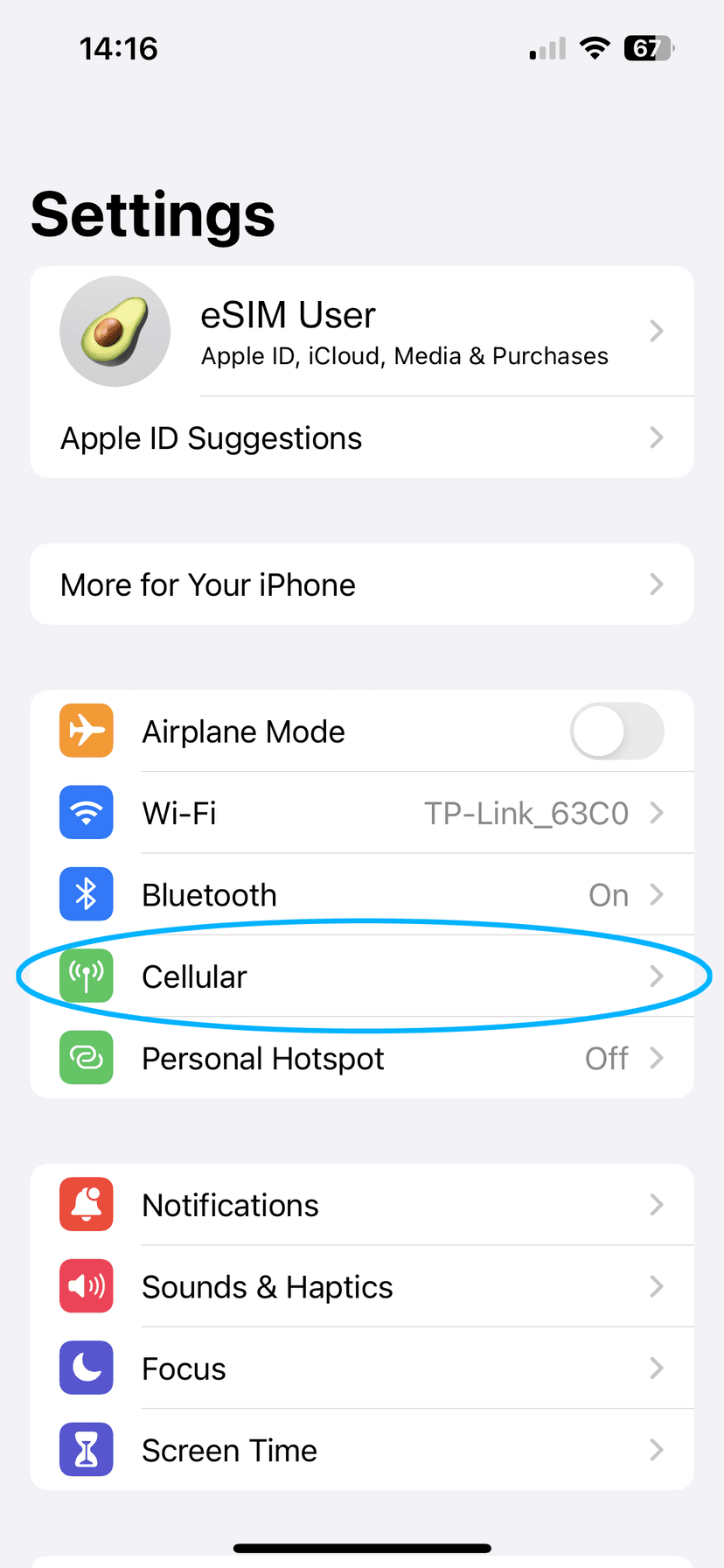
- Open Settings and tap Cellular (may be called Mobile or Mobile Service on some iPhones)
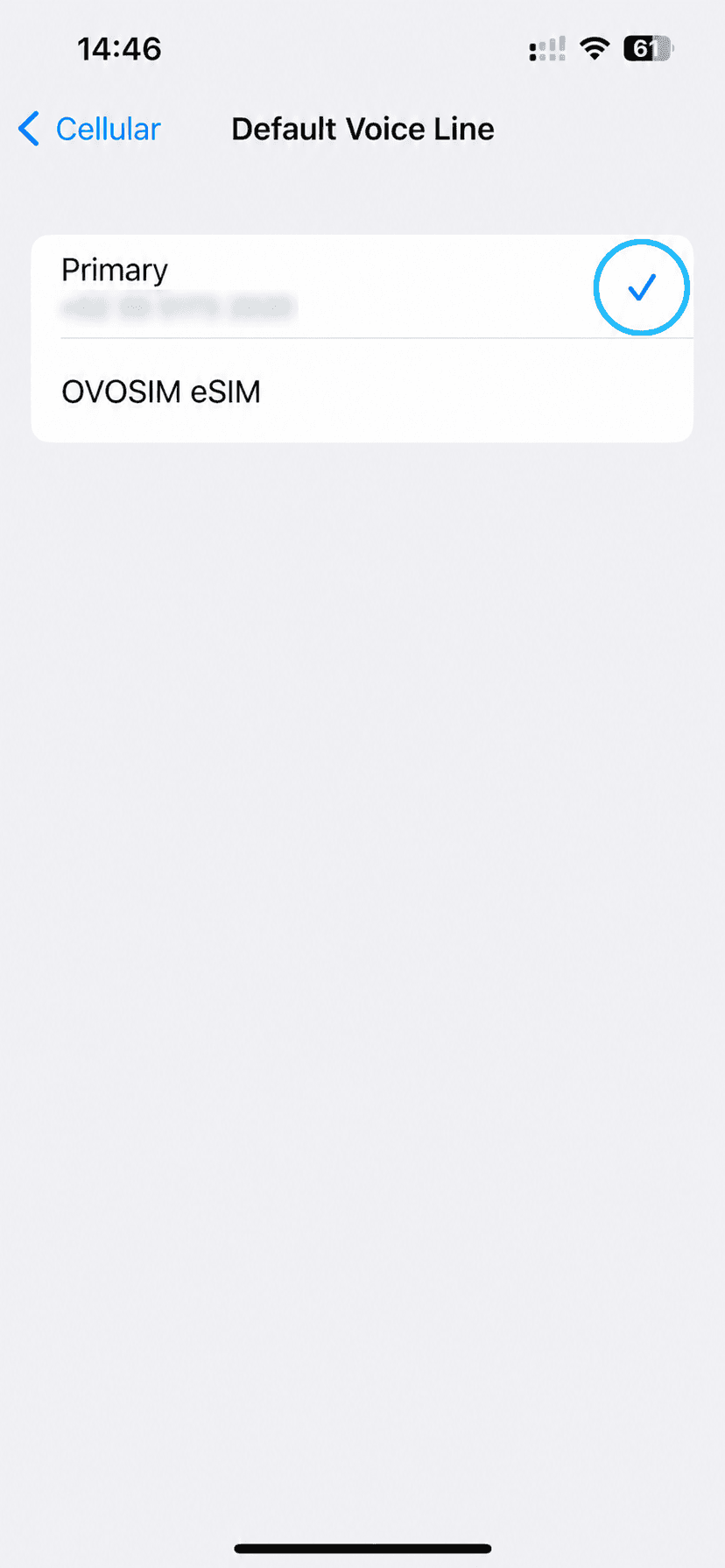
- Tap Default Voice Line
- Select Primary — the line with your phone number
iMessage Send & Receive Addresses
Since the OVOSIM eSIM line is for data only, it should not be enabled for iMessage. Trying to send iMessages through the eSIM line directly will fail.
Note: You can still use your OVOSIM internet connection to send and receive calls and SMS through your primary number — this is what iMessage uses. See How to Enable Calling and Texting on your eSIM (Wi-Fi Calling) for more details.
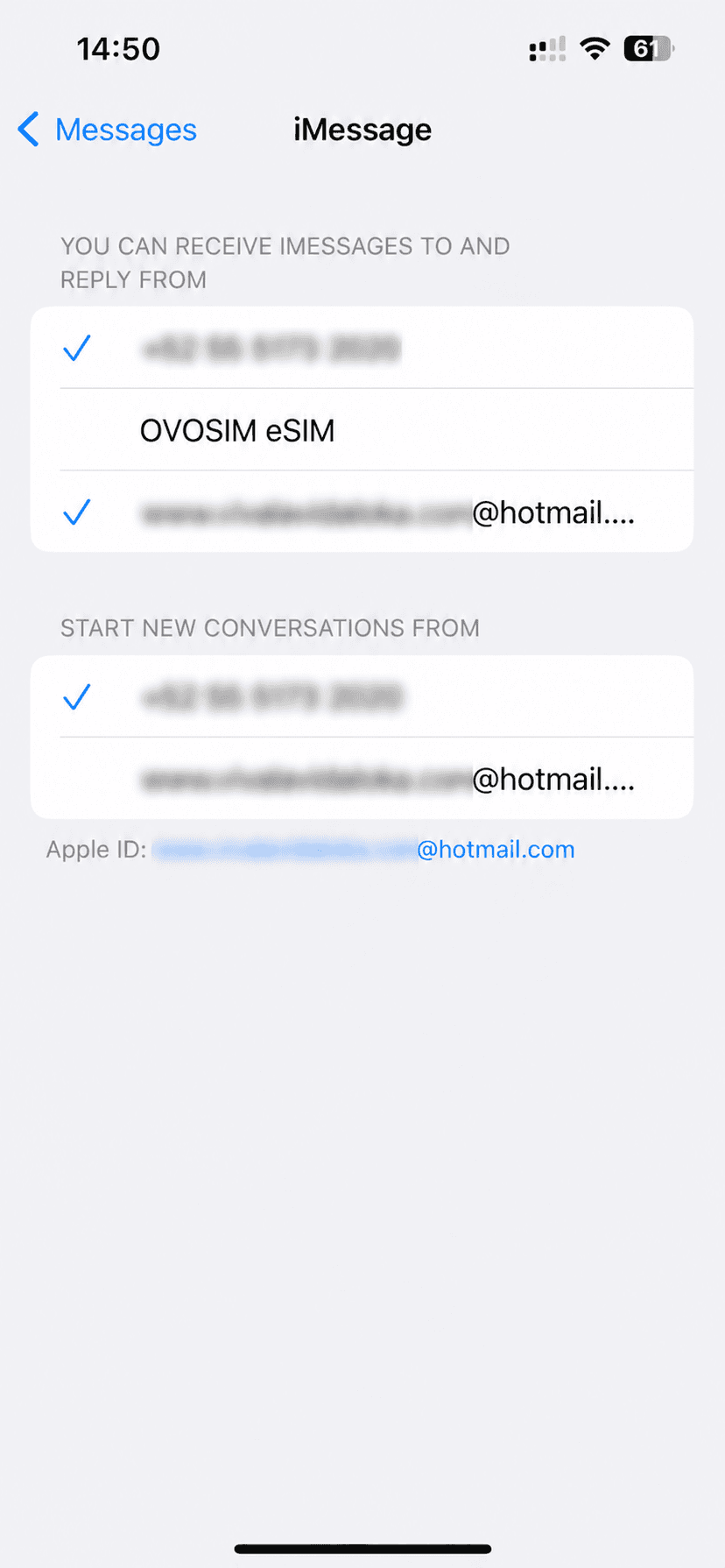
Step 2 — Set the iMessage Send & Receive Addresses
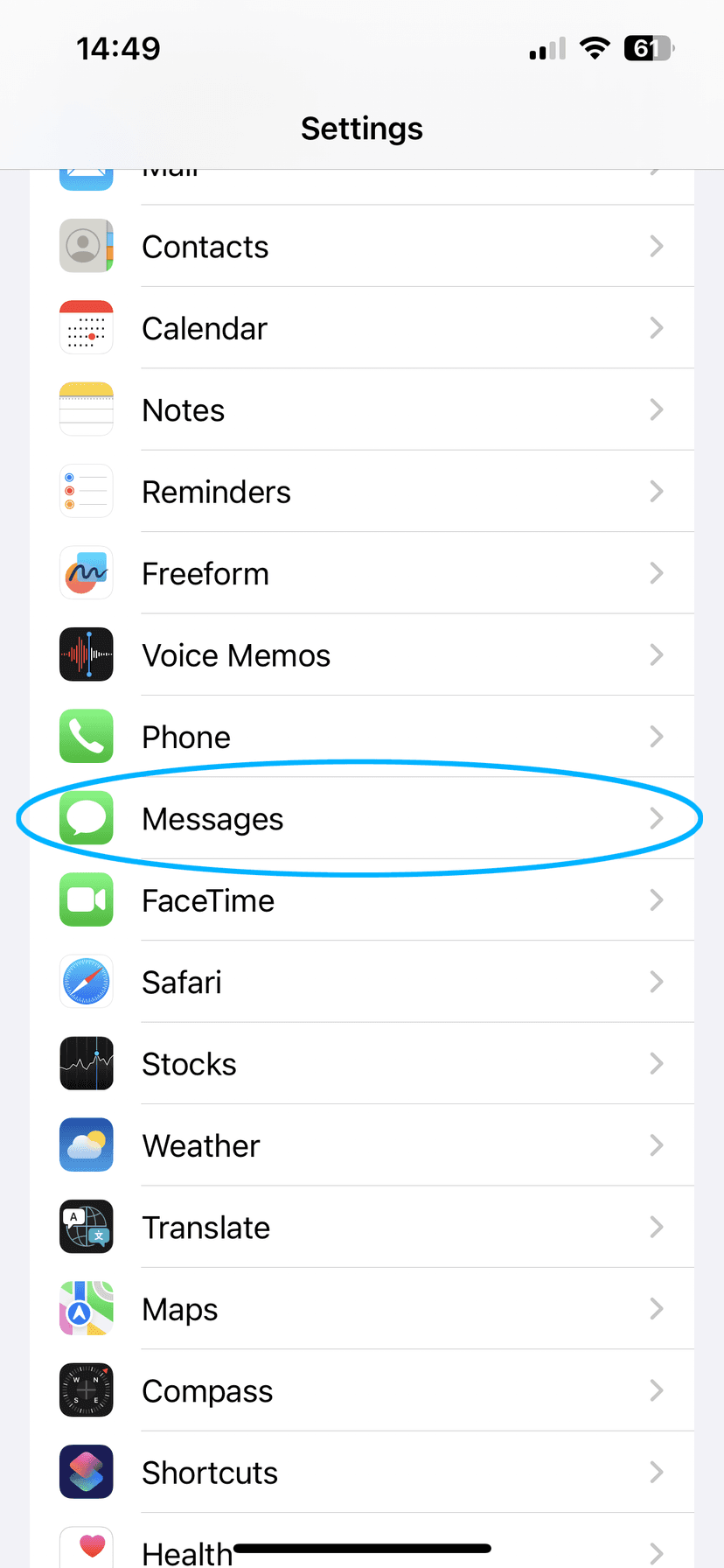
- Open Settings and scroll down to Messages
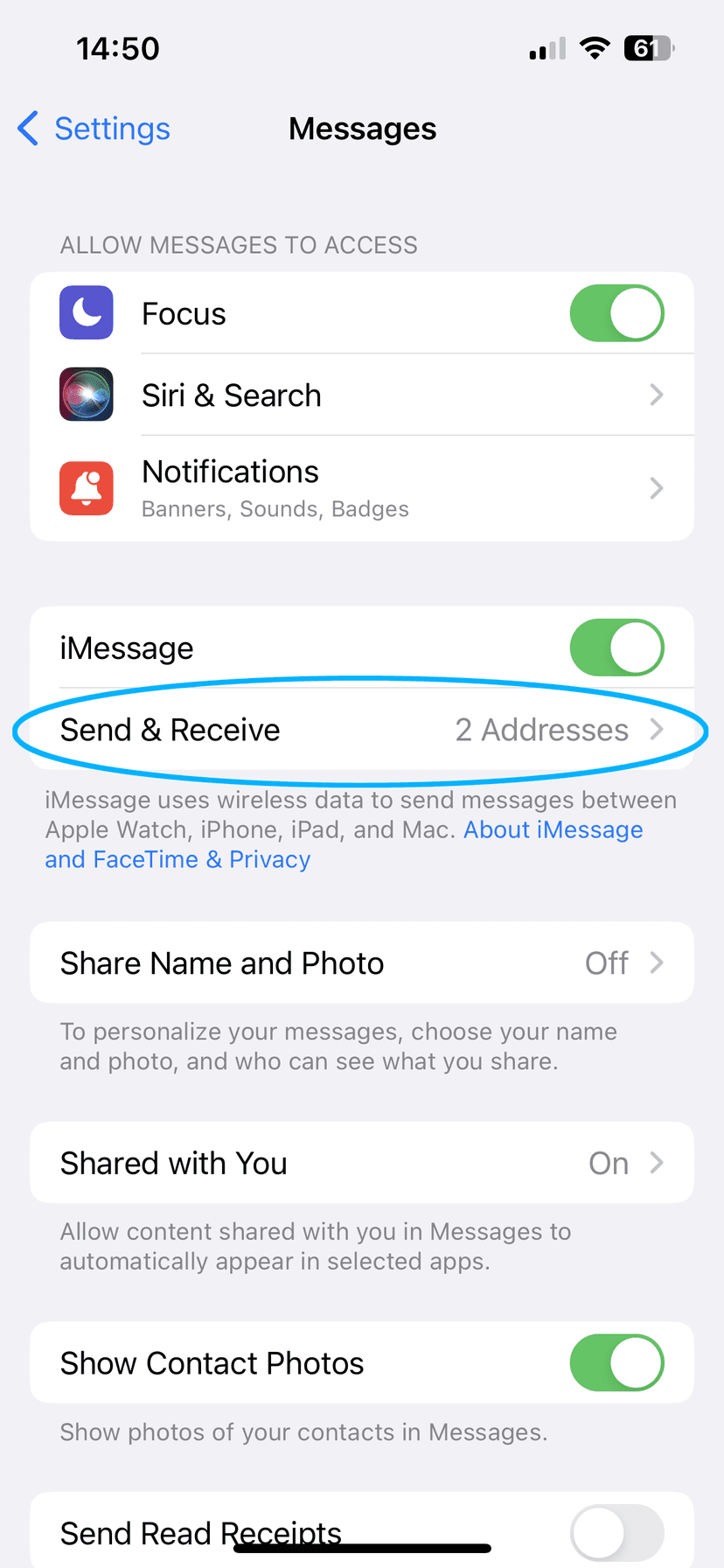
- Tap Send & Receive
- Enable your Primary phone number and Apple ID (blue checkmark)
- Disable the OVOSIM eSIM line (remove the checkmark)
Apple Documentation
If iMessage is still not working after following the steps above, refer to Apple's official iMessage documentation for further assistance: