
Activate an eSIM with Manual Activation Code
OVOSIM Support Team · Updated May 2026
If you are unable to scan the activation QR code, or prefer to activate a different way, you can enter a Manual Activation Code directly on your device.
Step 1 — Find your Manual Activation Code
- Log in to your OVOSIM account at ovosim.com
- Go to My eSIMs in the navigation menu
- Click Install eSIM under your plan
- Click Manual Activation Code on the popup
- Copy the activation code shown — you will need both the SM-DP+ Address and the Activation Code
iPhone — How to Use the Manual Activation Code
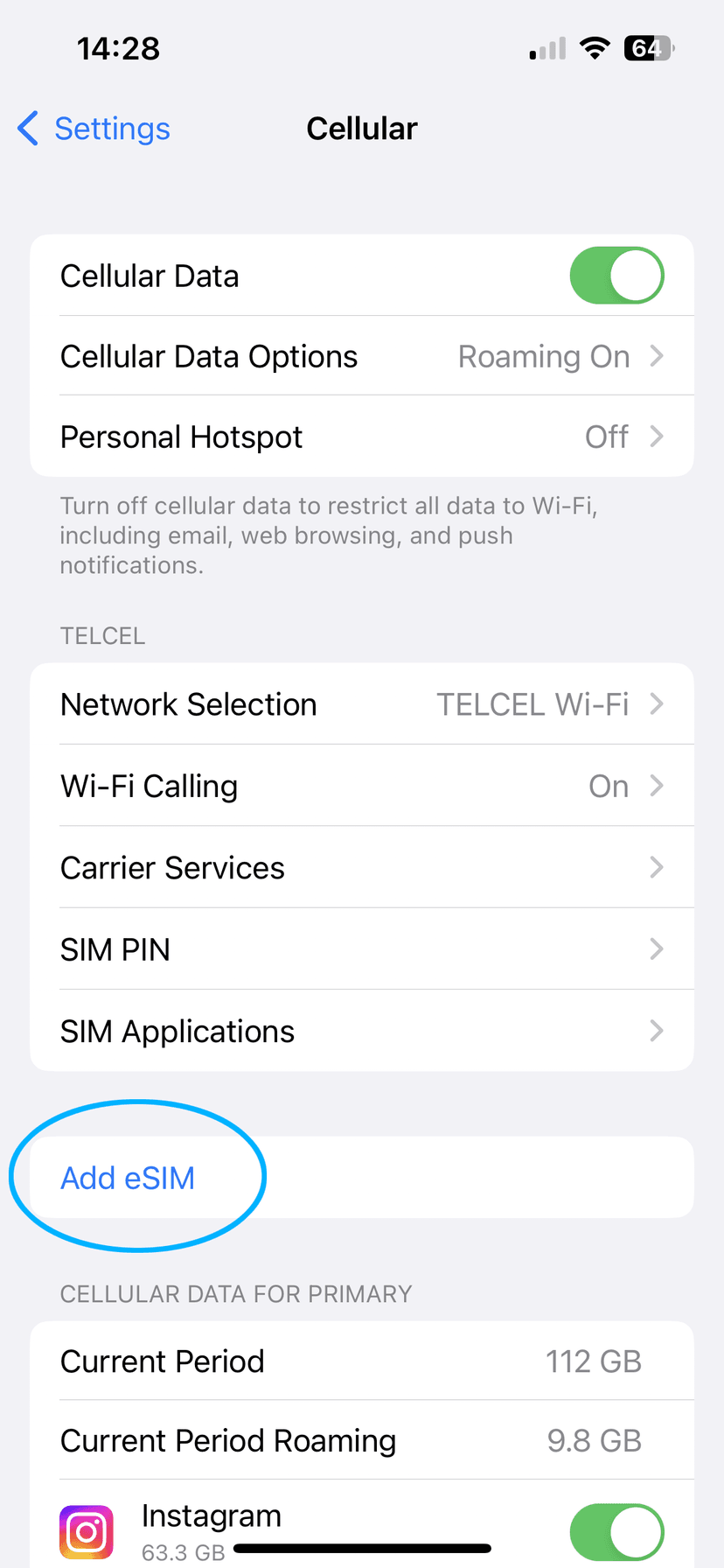
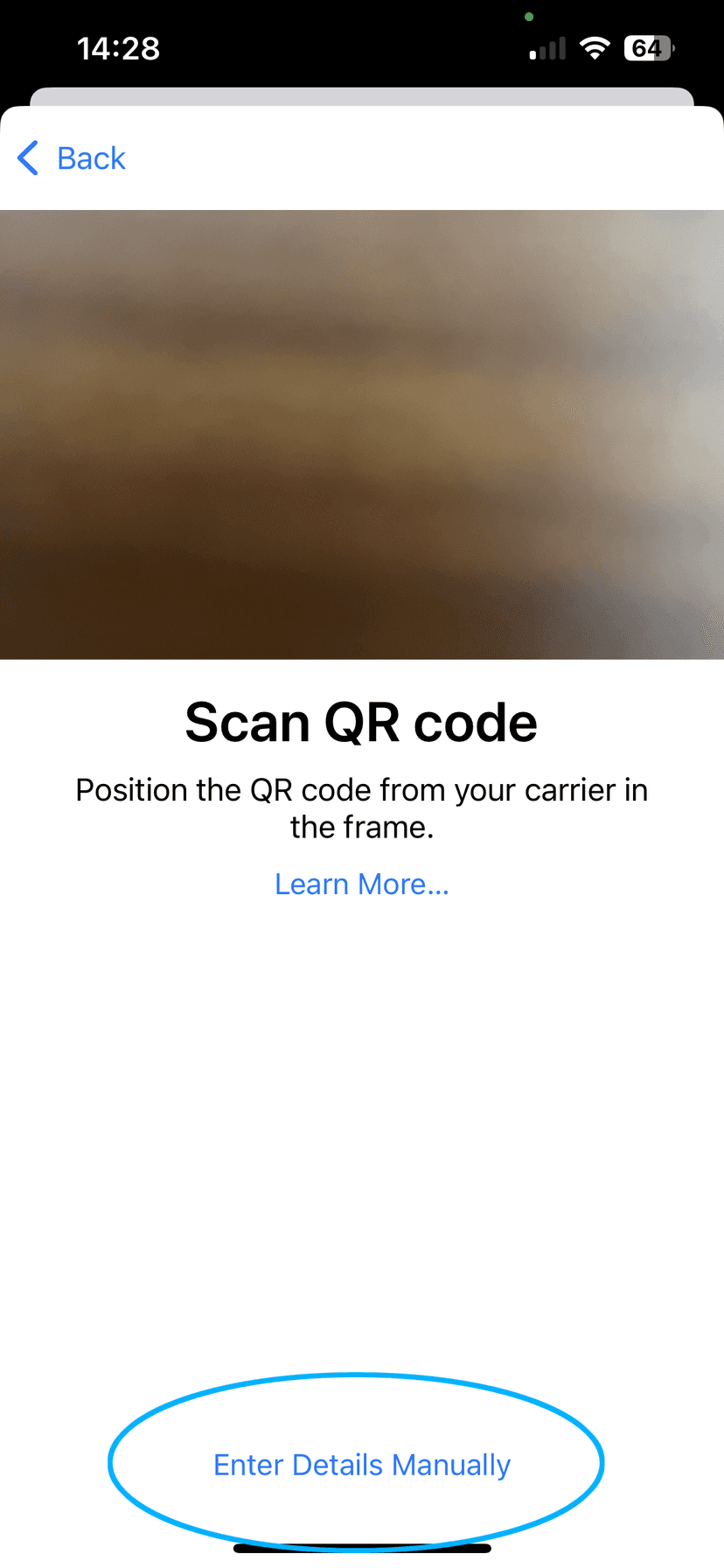
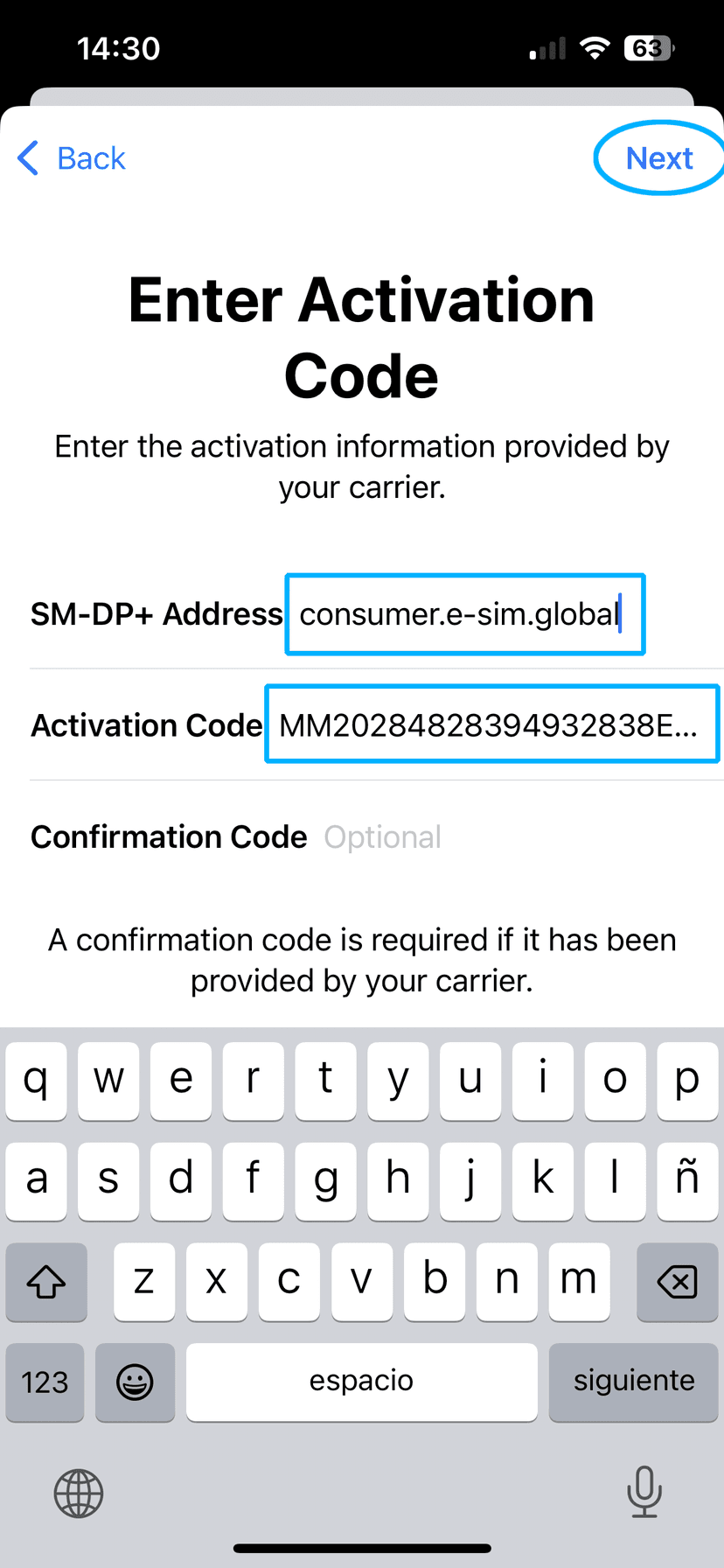
- Open Settings → Cellular
- Tap Add eSIM — your phone's camera will open
- Tap Enter Details Manually near the bottom of the camera screen
- Enter the SM-DP+ Address from your OVOSIM account
- Enter the Activation Code from your OVOSIM account
- Leave the Confirmation Code field blank — it is not required
- Tap Next in the top right and follow the prompts to complete installation
Getting an "Unable to Activate eSIM" error? The eSIM may already be installed on your phone. See the Unable to Activate eSIM guide to check your settings.
Android (Google Pixel) — How to Use the Manual Activation Code
- Open Settings → Network & Internet
- Tap SIMs and then tap the + icon
- Tap Download a SIM instead? near the bottom of the screen
- Tap Yes on the message that appears, then tap Next — your camera will open
- Tap Need help? at the bottom of the screen
- Under "Having trouble scanning your QR code", tap Enter it manually
- Enter the Manual Activation Code exactly as it appears in your OVOSIM account
- Follow the on-screen prompts to confirm the new data plan
Can't find these options?
If you do not see the options above on your device, your phone may not support eSIMs. Contact our support team and we can help cancel or refund your order.