
eSIM Quick Start Guide: How to Install an eSIM
OvoSIM Support Team · Updated May 2026
How to Buy an eSIM
Go to ovosim.com/destinations and select the country you are traveling to. After purchasing, you will receive a QR code by email within 5 minutes.
How to Activate an eSIM
iPhone
- Tap and hold the QR code in your email and select Add eSIM. Alternatively, open the Camera app and scan the QR code.
- Follow the prompts to install the new data plan. The default options are fine to accept.
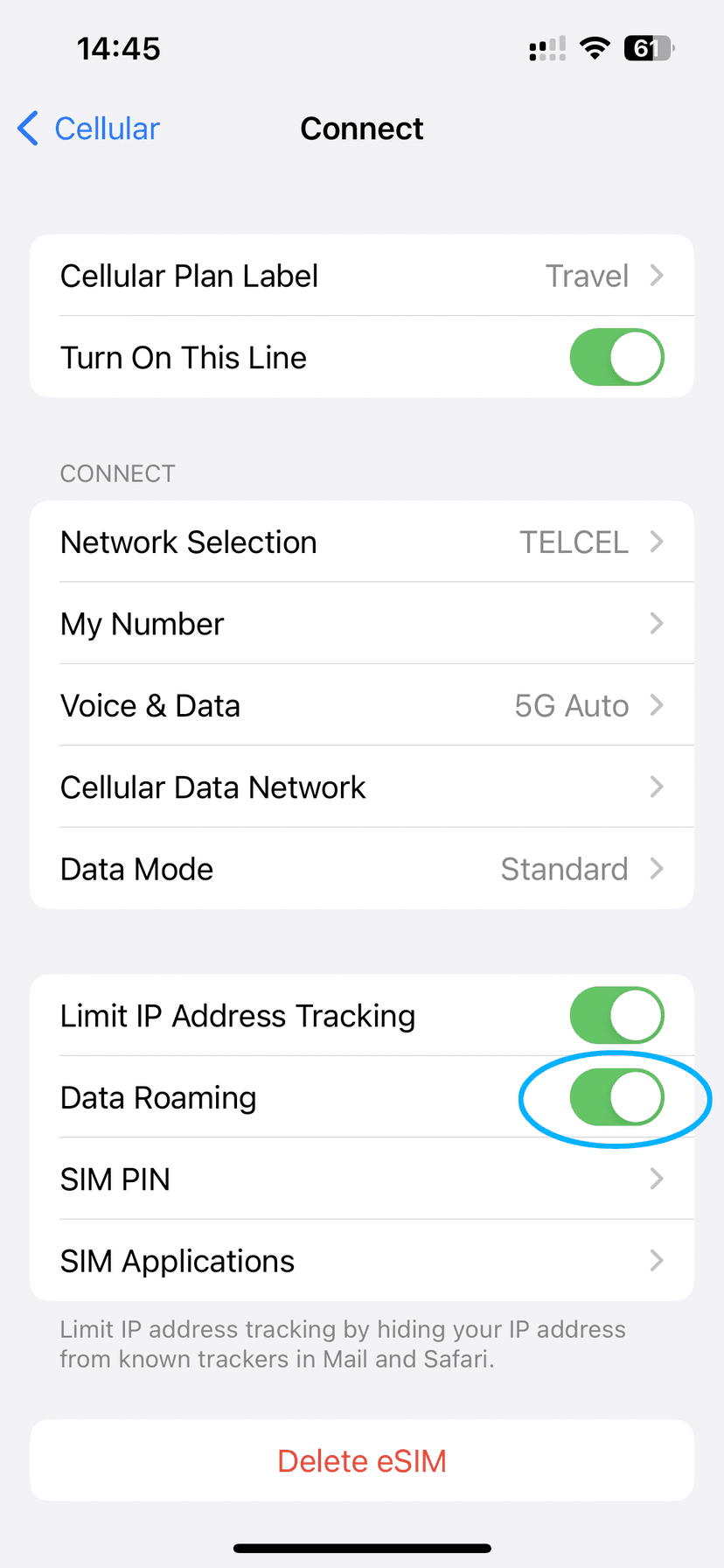
- Once added, make sure Data Roaming is set to ON in Settings.
Android
- Open the Camera app and point it at the QR code.
- Tap the notification that appears — it should say Data Plan.
- Follow the prompts to install. The default options are fine to accept.
- Once added, make sure Data Roaming is ON in your phone settings.
Recommendations
- Turn off Data Roaming on your Primary line to prevent unexpected charges from your home carrier.
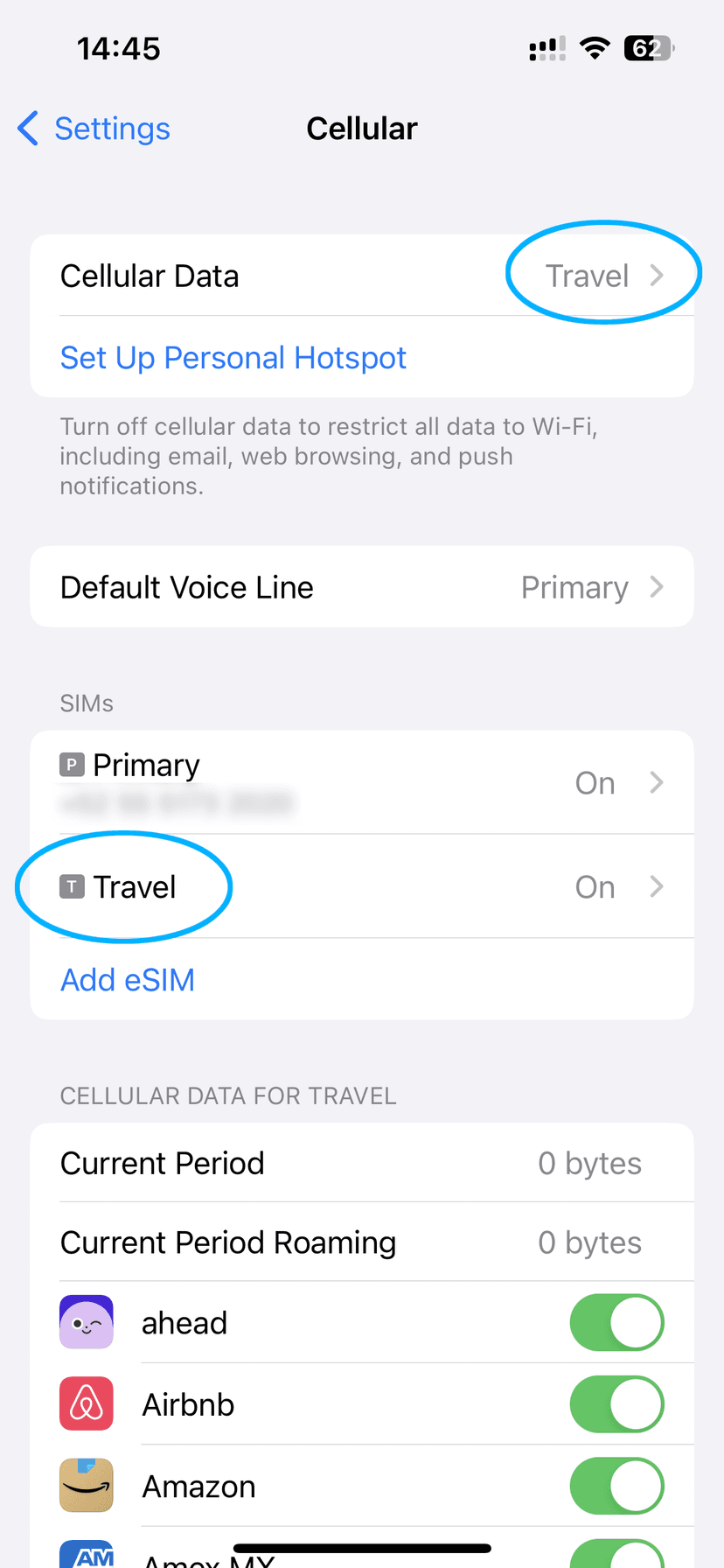
- If you install before arrival, set the OvoSIM eSIM as your primary Cellular Data plan when you land.
- Enable Low Data Mode (iPhone) or Data Saver (Android) to prevent background apps consuming your data.
Step-by-Step Example (iPhone)
Step 1 — Add eSIM
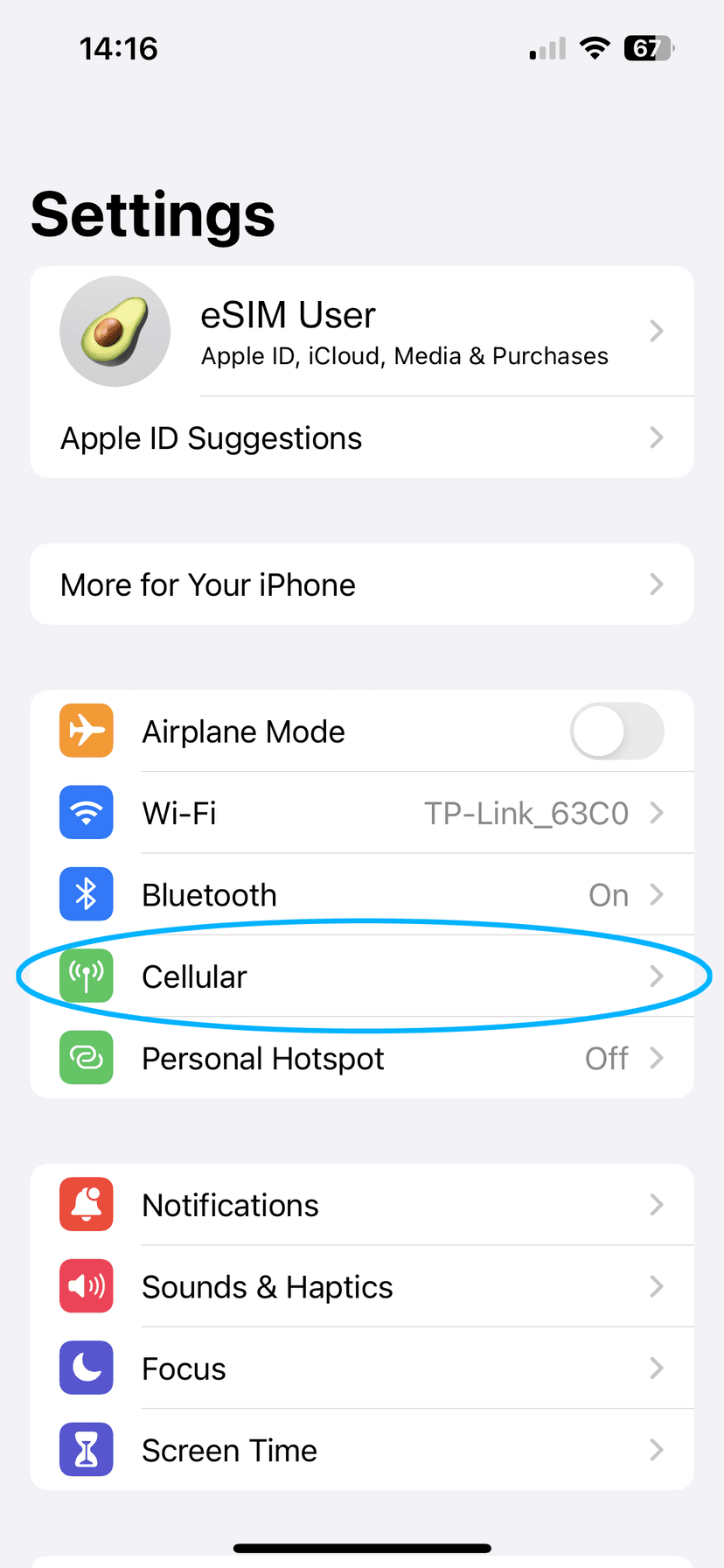
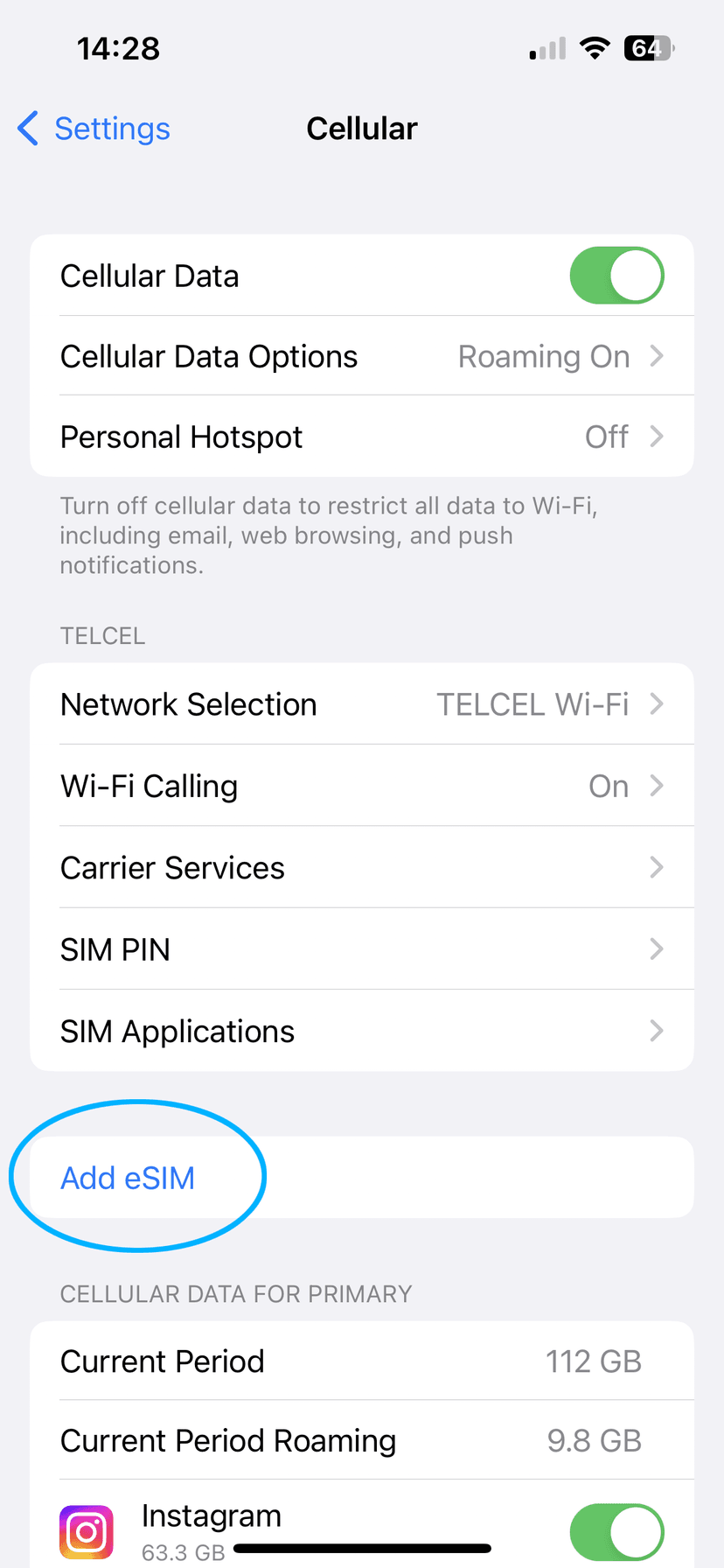
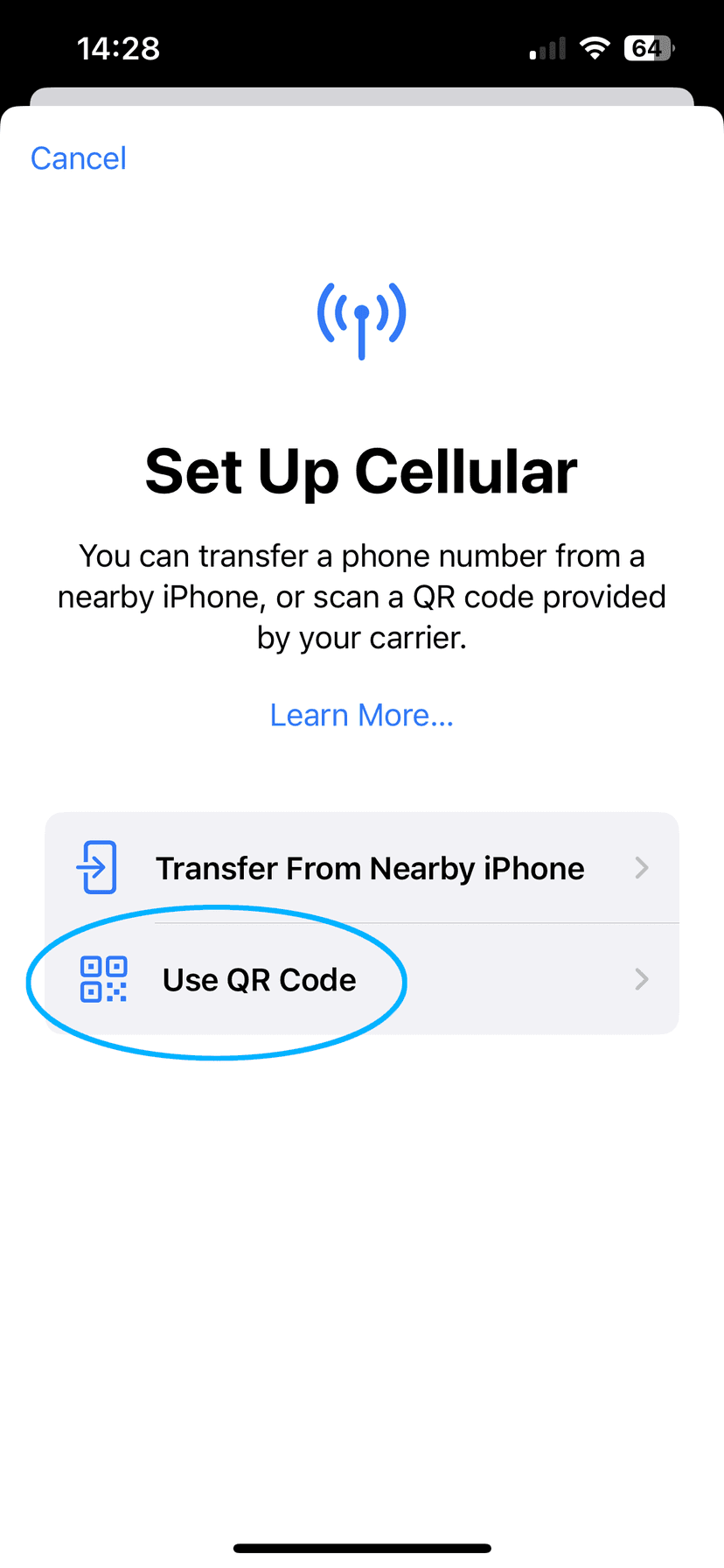
Open Settings → Cellular and tap Add eSIM, then tap Use QR Code to scan the QR code from your email.
Can't scan the QR code? See Activate an eSIM with Manual Activation Code.
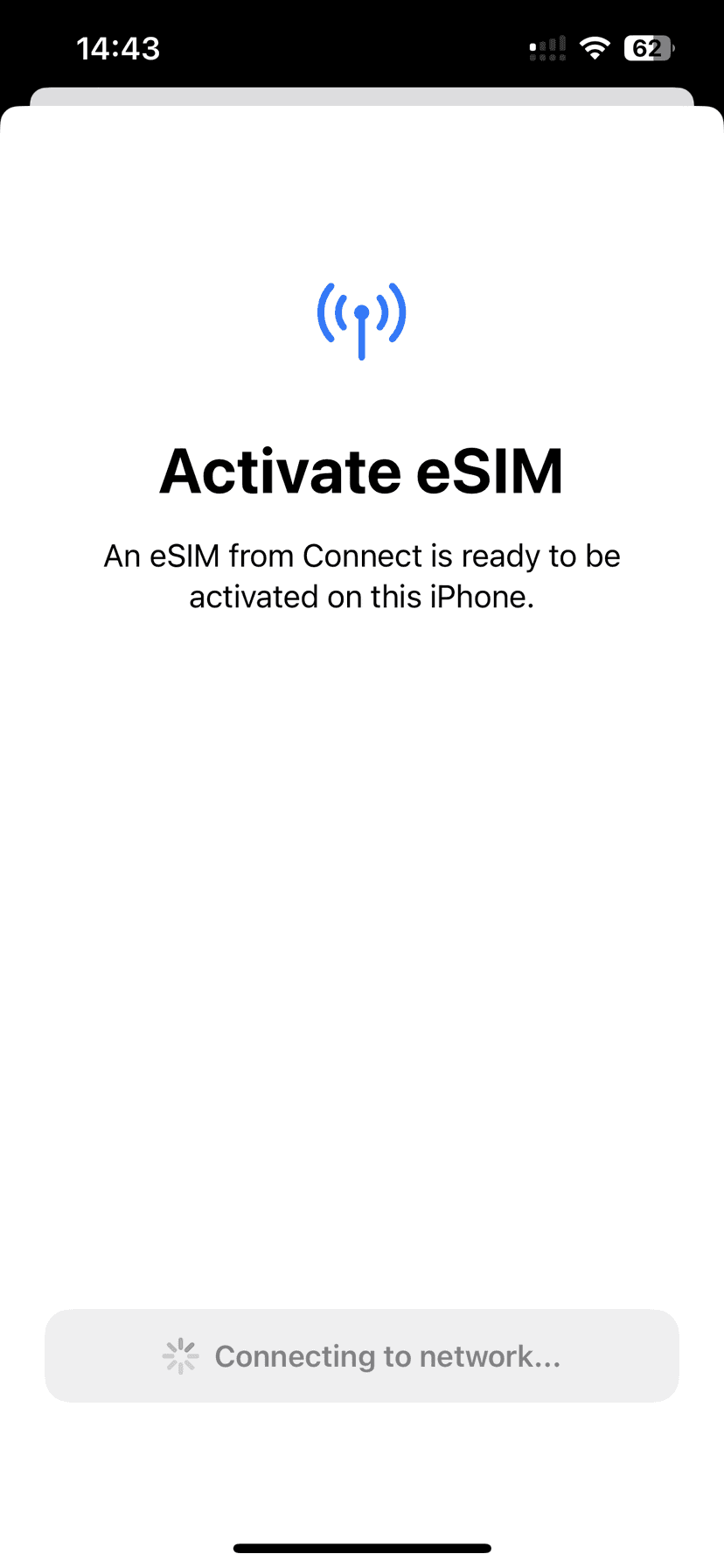
Step 2 — Activate eSIM
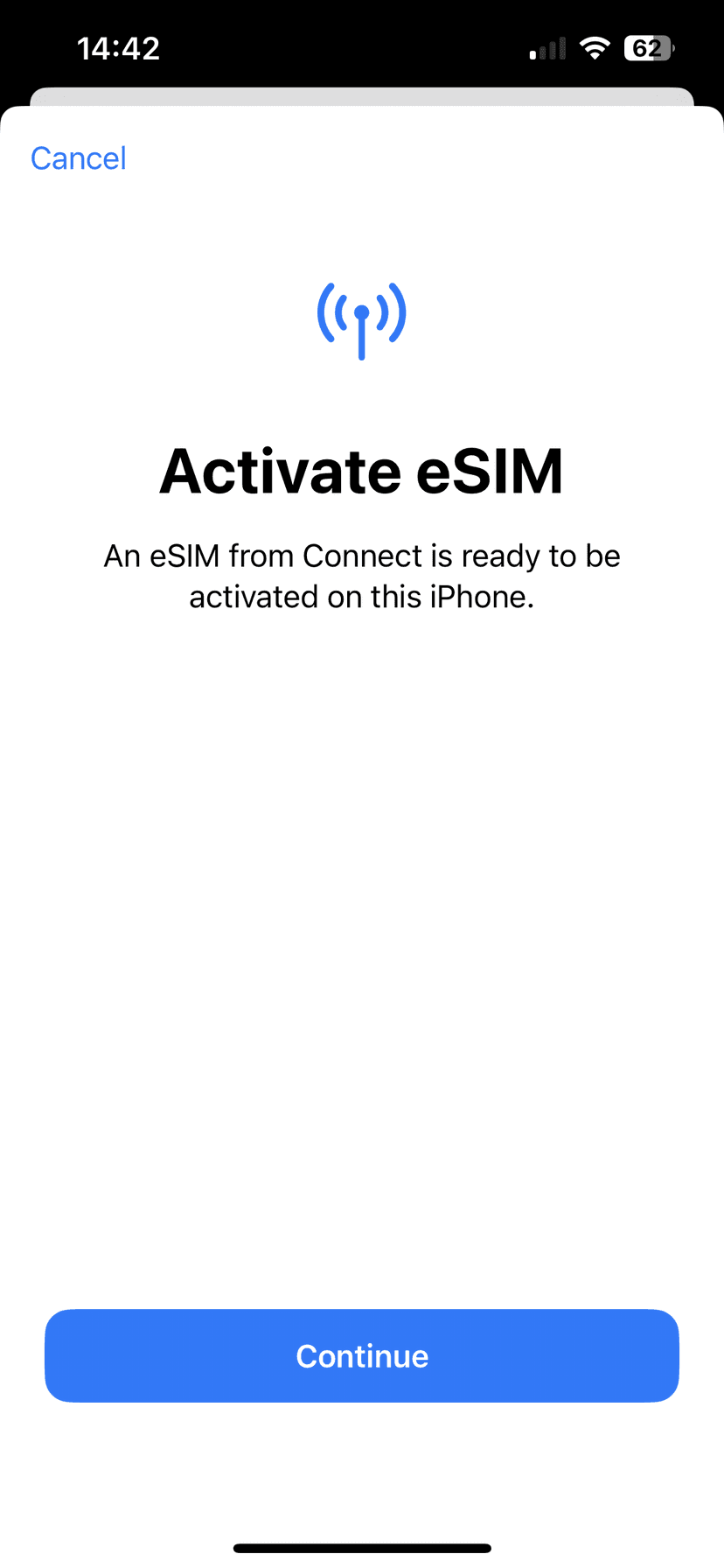
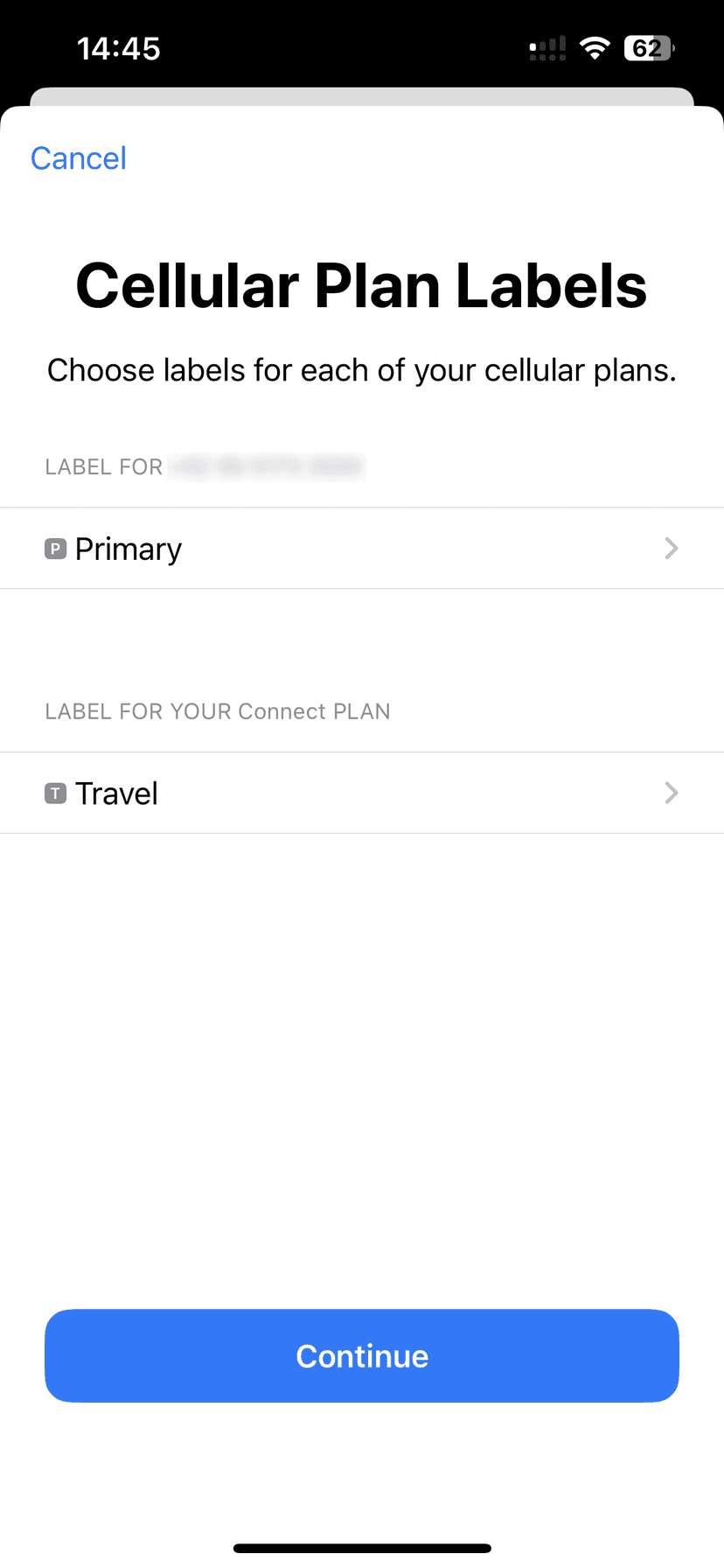
Your iPhone will connect and activate the eSIM. Assign a label to the plan — name it "OvoSIM" or the destination country.
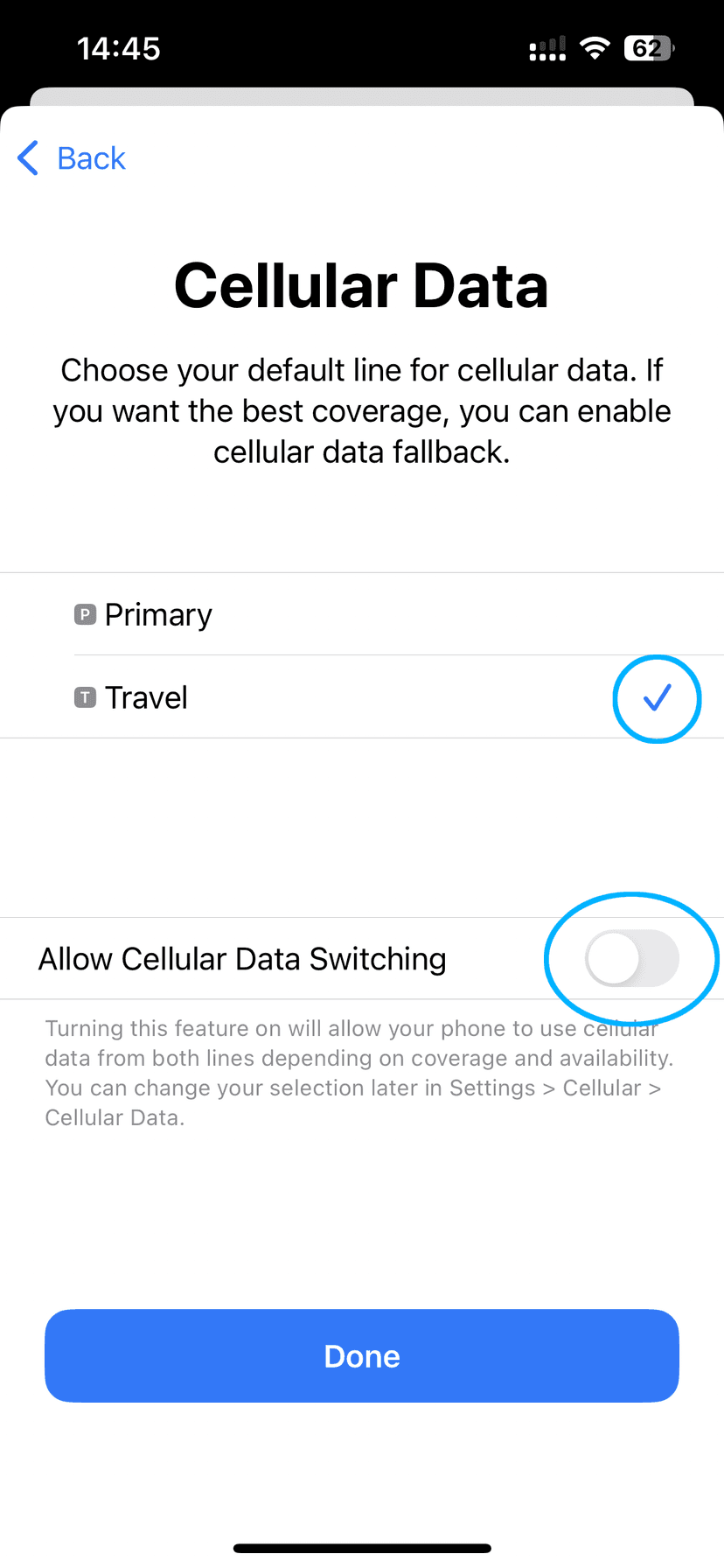
Step 3 — Choose Default Lines
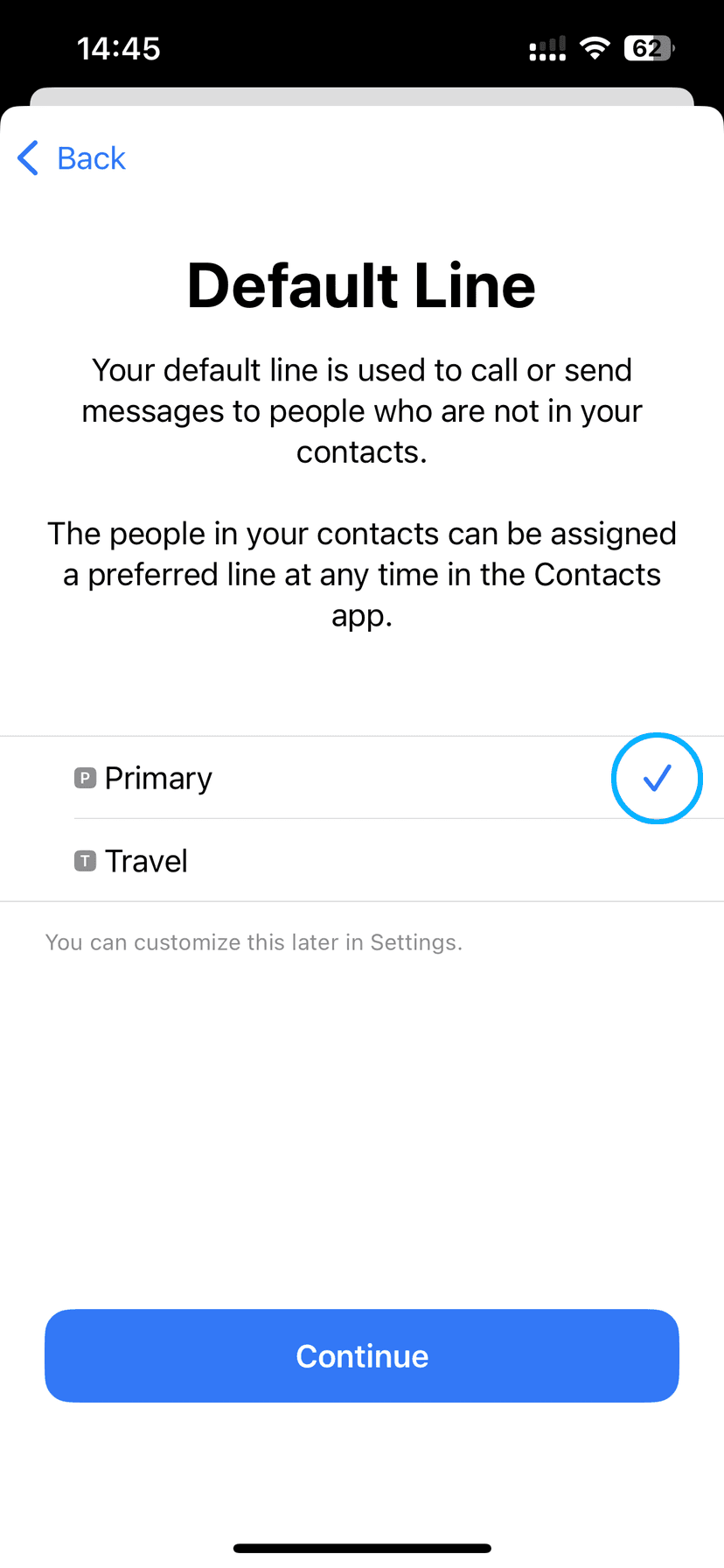
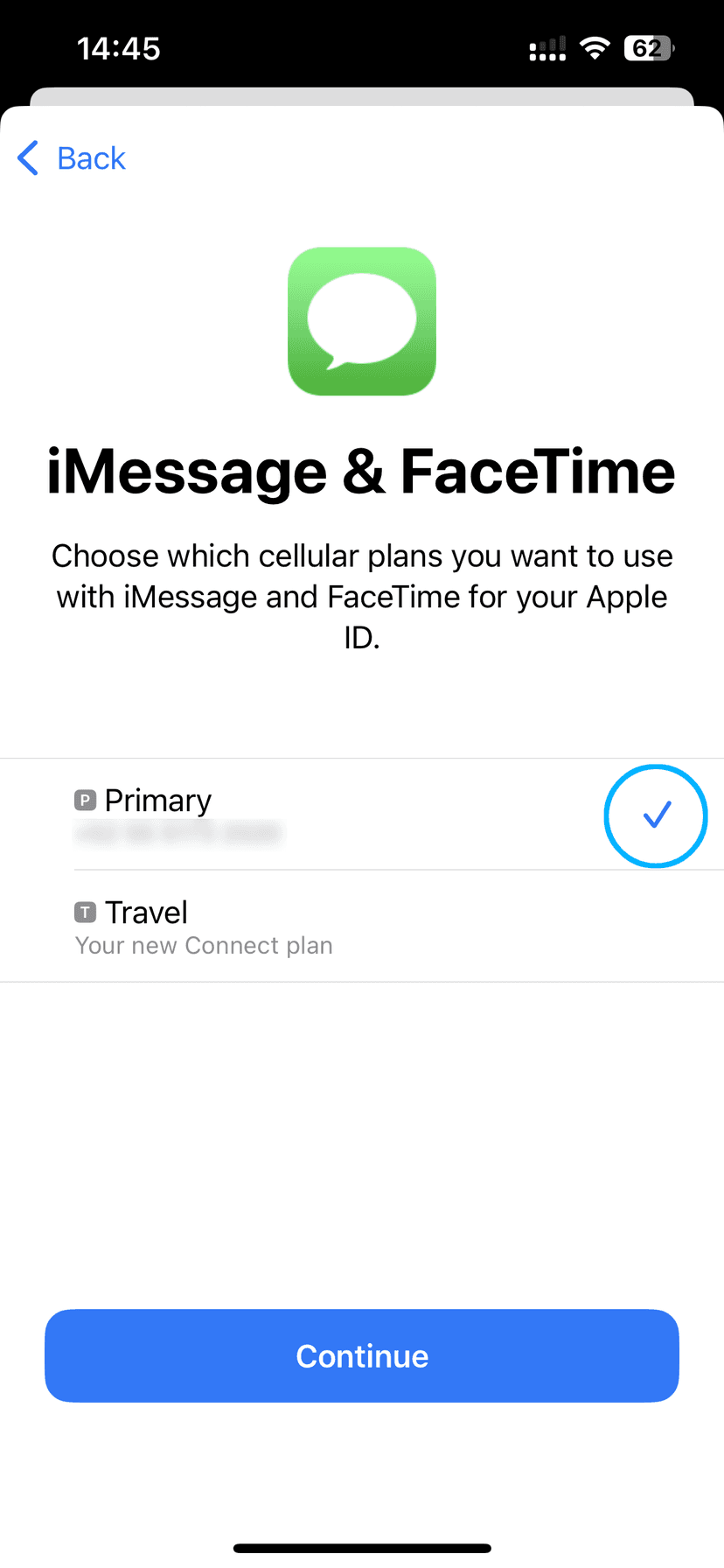
Your iPhone will ask which plan to use for Voice, iMessage, and Cellular Data. Set them as follows:
- Default Line (Voice & SMS) → Primary (your home SIM)
- iMessage & FaceTime → Primary (your home SIM)
- Cellular Data → Travel (your OvoSIM eSIM)
Leave Allow Cellular Data Switching off to avoid accidentally using your home SIM for data.
Step 4 — Enable Data Roaming
The eSIM is now installed. The final step is to make sure Data Roaming is ON for the OvoSIM line. On the same screen, select Data Mode → Low Data Mode to conserve data.
Connecting to the Internet
After activating, your device will search for a signal immediately. In most cases you'll see 5G or 4G LTE in the status bar within seconds. In rare cases it can take up to 15 minutes.
Traveling to Russia? Russia applies a mandatory 24-hour data block to all international eSIMs on first connection. This is a government regulation, not a fault with your eSIM. Your data will work from the following morning. See our Russia data block guide.
If you can't connect after 15 minutes, see our eSIM Connection Troubleshooting Guide.